
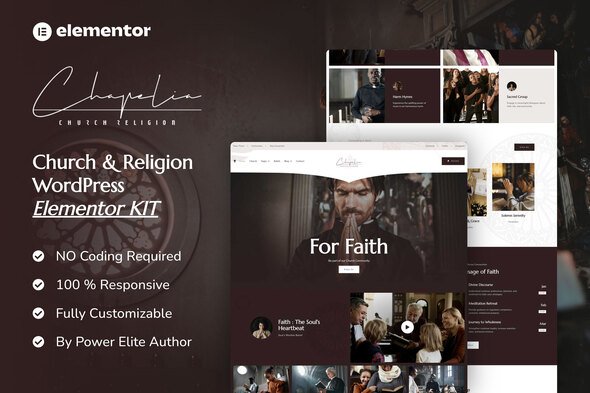
Chapelia – Church & Religion Elementor Pro Template Kit
- Updated on June 9, 2026
- 100% Original Product & Well Documented
- Unlimited Domain Usage
*Important Note:
The image should not be Part of the template kit. You need to use your own reliable Source.


- Coupon "b2g1" has expired.
- Coupon "b2g1" has expired.
Original price was: ₹999.00.₹299.00Current price is: ₹299.00.
Launch a church website in an afternoon. This Elementor kit gives you 12+ pages, a commercial license, and lifetime updates — all for a one-time fee. No coding. No developers. Just pick it up and go.
- Secured & Scanned by Virus total & McAfee.
- Access to Free updates for Lifetime
- All products are Under GPL License (Unlimited Domain Usage)
- We Not Provide any Support For this Product

Lifetime Membership
Access 6700+ Premium WordPress Themes & Plugins, Elementor Templates, Mobile Apps, PHP scripts with Lifetime Updates.
Join Premium MembershipRecently Viewed
Get Your Church Online Without the Headache
Most churches don’t have a tech team sitting around. You have a pastor who built the last site on GeoCities, or a volunteer who “knows a little WordPress.” That’s where Chapelia comes in.
This is a complete Elementor template kit made specifically for churches, ministries, and faith-based groups. Twelve pages you can import today and have live by this weekend. Sermon pages. Event calendars. Donation forms. Team profiles. The works.
No coding. No agency invoices. Just clean, professional pages that actually represent what your church is about.
What You’re Getting
Twelve complete page templates that drop right into Elementor. They’re responsive — looks good on phones, tablets, and desktops. The design walks that fine line between professional and welcoming, which is exactly what a church website needs.
- Homepage with service times, hero section, and event previews
- Sermon archive plus individual sermon pages (supports audio and video embeds)
- Events listing and single event detail pages
- Ministry team page with photos and role descriptions
- About page with space for your mission, history, and story
- Contact page with map and a form builder
- Give/Donation page with layout ready for most payment processors
- Blog template for sermon notes, announcements, and updates
Is This for You?
Chapelia fits small to mid-sized churches that need something better than a five-year-old WordPress theme held together with prayers. If you’re a pastor juggling a dozen responsibilities, a church volunteer who got roped into “doing the website,” or an agency building sites for multiple churches — this saves you serious time.
You don’t need technical skills. If you’ve used the block editor in WordPress, you can work with this. It runs on the free Elementor plugin and uses their native widgets, so everything stays lightweight.
Getting Started
After purchase, you’ll download everything immediately. Import the kit into your WordPress site, swap in your colors and logo, add your service times and sermon links, and publish. Most people report being live within a few hours.
The commercial license covers client projects, multiple churches, or your own organization. One purchase, no recurring fees.
Why Not Just Grab a Free Theme?
Free church themes are… fine, until they’re not. They often load slowly, come with features you’ll never use, and when something breaks, you’re on your own. Chapelia includes lifetime updates — if WordPress or Elementor releases a major change, your site keeps working. You’ll also have access to our support team during setup if you get stuck.
It’s a template built for churches, not a generic design stretched to fit. That matters when visitors land on your page and immediately compare it to the church down the street.
What You Get with Your Purchase
Instant download. Commercial license. Lifetime updates. Lifetime support. One payment, done. Buy Chapelia today and have a complete church website live by tomorrow.
Only logged in customers who have purchased this product may leave a review.
How to use Kit:
Install and activate the “Template Kit – Import” plugin from Plugins > Add New in WordPress.
Do not unzip.
Go to Template Kit – Import > Upload Template Kit Zip File button.
Before importing a template, ensure the Install Requirements button is clicked to activate required plugins.
For best results, do not import more than one template at a time.
RELATED PRODUCTS
DIVI – Original License | One Time Payment – Exclusive Deal

Elementor Pro 4.2.1 + Elementorism Landing Pages WordPress Plugin

907 5.3.6 – Responsive Multi-Purpose WordPress Theme

Element Pack Pro 9.1.0 – Addon For Elementor






 Mobile Apps
 php script
 How to
Reviews
There are no reviews yet